Guide: Your website, start to finish · Chapter 4 of 9, Pages · article 2 of 2
Edit an activity's page
Give each activity its own page, add your own sections around its live price, dates and Book button, and choose how that part looks.
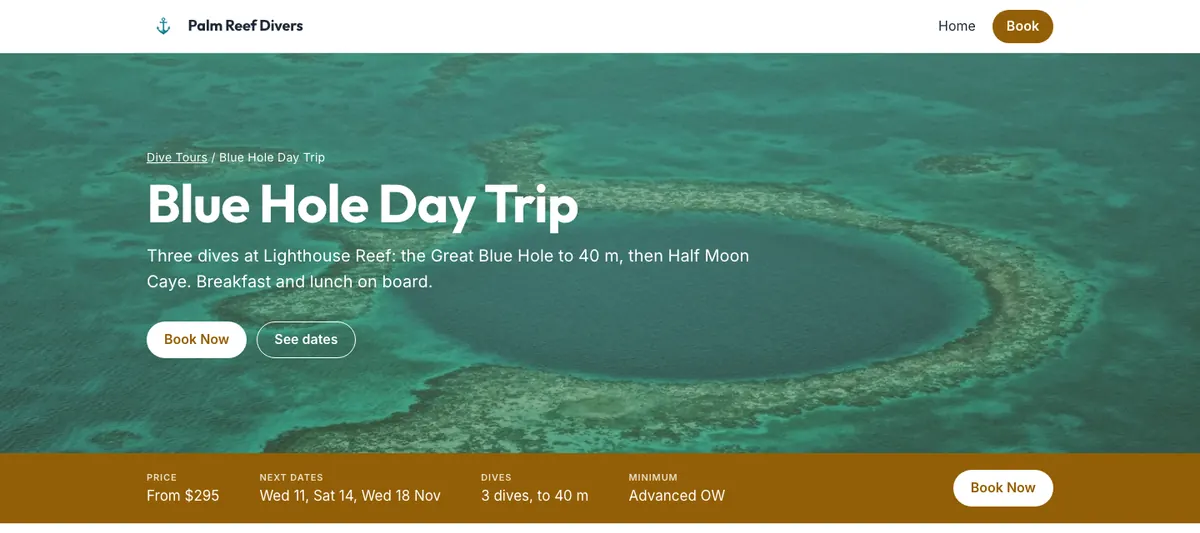
Every activity that is on and bookable online has its own page on your website, at its own address, like /blue-hole-day-trip. Its top part is live: the activity's photo, name, price, next dates and Book button come from Activities, so the page always matches what you sell. You add the rest: words, photos, what's included, questions.
See your activity pages
- Go to Website → Pages and find Activity pages.
- Each activity shows its address and where it stands:
- Not started: visitors see the standard page, the live part on its own.
- Changes waiting: your draft has changes that aren't published yet.
- Published: your sections are live.
- Press Edit to open one in the editor.
Activities with no page are listed under No page, with the reason, such as Not bookable online, and Open in Activities.
Start an activity's page
Nothing changes on your live site until you press Publish.
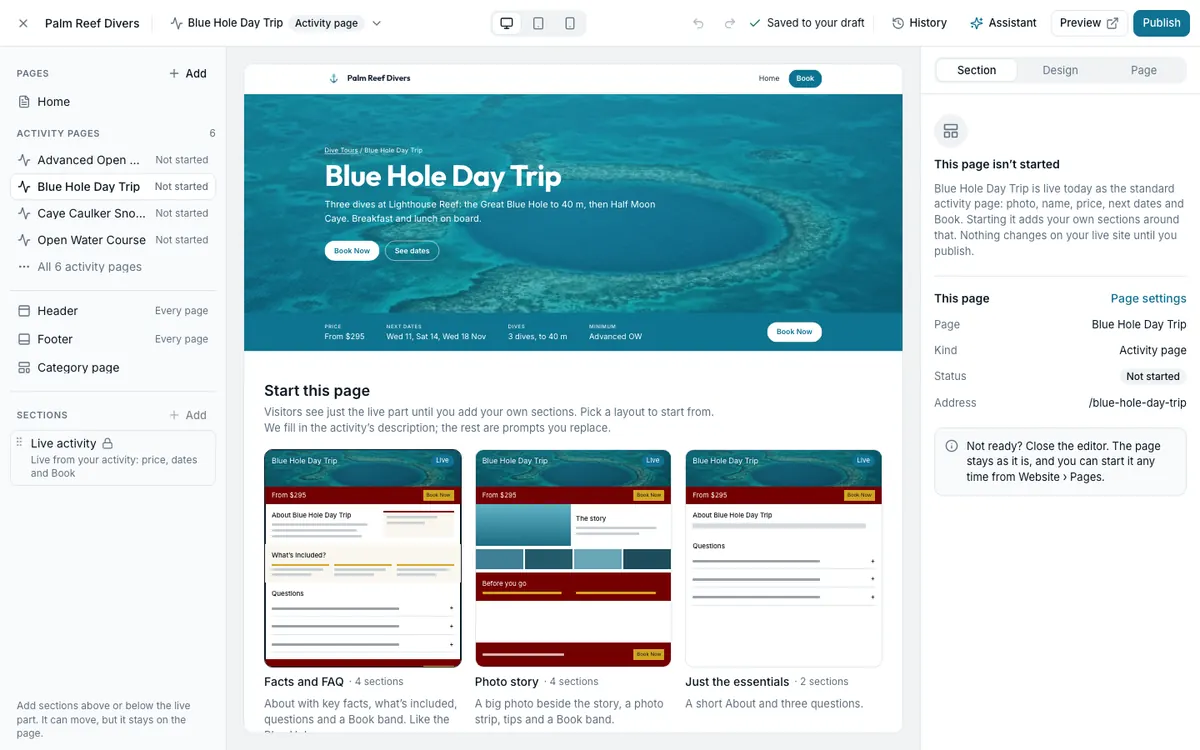
- In the editor, pick the activity under Activity pages on the left.
- Under Start this page, pick a layout: Facts and FAQ, Photo story or Just the essentials.
- Press the button that names it, such as Use Facts and FAQ.
- Or press Start with an empty page, or Ask the assistant to write it.
- Replace the prompts with your own words. The about text starts as the activity's own description.
Change how the live part looks
The live part is the Live activity section, marked with a lock. It can move among your sections, but it can't be removed, copied or hidden, and every activity page has exactly one.
- Click the live part on the page.
- Layout puts the photo behind the words (Photo behind) or beside them (Photo beside).
- Colour scheme sets the bar under the photo and its button. With Photo behind, Darken the photo keeps the words readable.
- Space above and below makes the photo band shorter or taller.
- Add section above and Add section below add a section right next to it.
To change the name, price or photos, press Edit name, price and photos in Activities.
An activity page's name and address
The Page tab of an activity page is read-only, because its name, address and search text come from the activity. Rename the activity and the address follows; the old address keeps working. Change these on the activity opens Activities.
Start an activity's page over
Start over removes your sections and goes back to the standard page. The live part and the address stay. If the page is already published, visitors keep seeing it until you publish again.
On a phone, tap Live from Activities on the page to see what the live part shows. You can start a page on a phone, but moving sections or changing their style needs a computer.
Still stuck?
Signed in, it can also look at your own shop.
A person reads every one: support@seascape.bz