Guide: Your website, start to finish · Chapter 3 of 9, The editor · article 1 of 3
Edit a page: sections, words, photos and style
Select, move or hide a section, change words and photos, put a photo behind a section, change colours and fonts, and edit on your phone.
The editor is where you change what is on each page. Everything you do saves to your draft as you go, and your live site changes only when you press Publish.
The editor's three parts
- Go to Website and press Edit site.
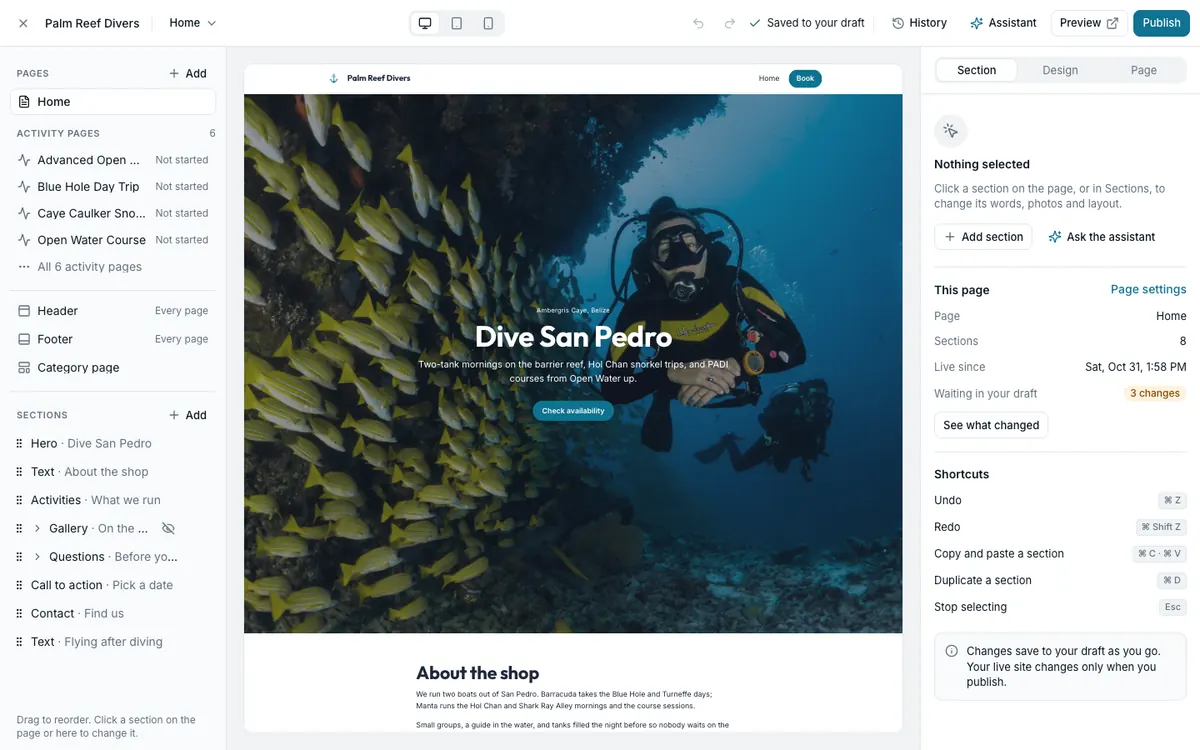
- On the left are your Pages, your Activity pages, the parts on every page (Header, Footer and Category page), and the Sections of the page you are on.
- In the middle is your page as a visitor sees it. Switch between Computer, Tablet and Phone at the top.
- On the right are three tabs: Section changes what you selected, Design changes your colours, fonts and style, and Page holds the page's name, address and search details.
Along the top are Undo and Redo, Saved to your draft, History, Assistant, Preview and Publish.
Select, move, hide or remove a section
- Click a section on the page, or its name under Sections.
- A small toolbar appears on it: move up, move down, duplicate, hide from the live site, delete, and Ask about this.
- To move a section further, drag the handle beside its name under Sections.
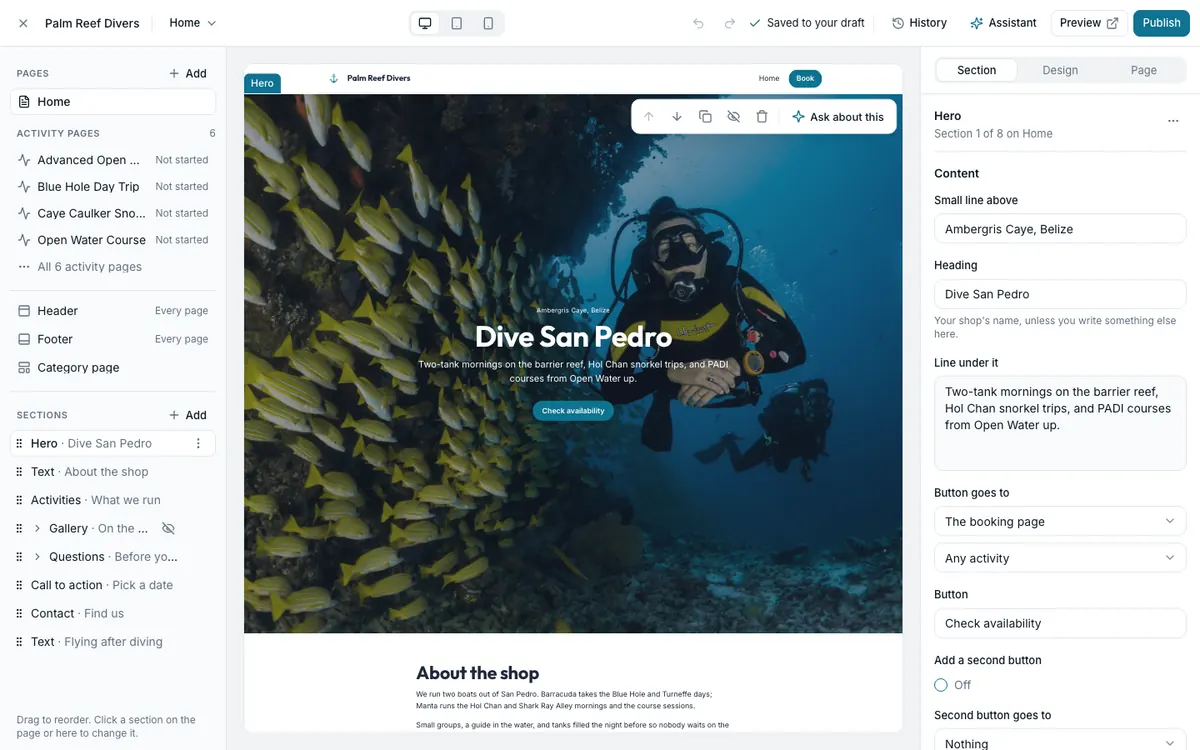
The ⋯ beside the section's name in the right panel has Duplicate, Copy, Save section…, Hide from the live site and Delete section. The ⋯ beside a section in the list on the left has Duplicate, Hide from the live site and Delete. A hidden section stays in your draft; Show on the live site brings it back.
Keyboard shortcuts work too (Ctrl instead of ⌘ on Windows): ⌘C and ⌘V copy and paste a section, onto any page, ⌘D duplicates it, and Esc stops selecting.
Change the words on a page
On a computer
- Select the section. Its words are in the Section tab on the right, under Content.
- Type your changes. They save to your draft as you type.
- Or click a heading or paragraph on the page and type there. A small toolbar sets bold, italic, a list or a link. A link can go to a page on your site, your booking page, a web address, an email address or a phone number.
- Press Esc to stop typing.
On a phone
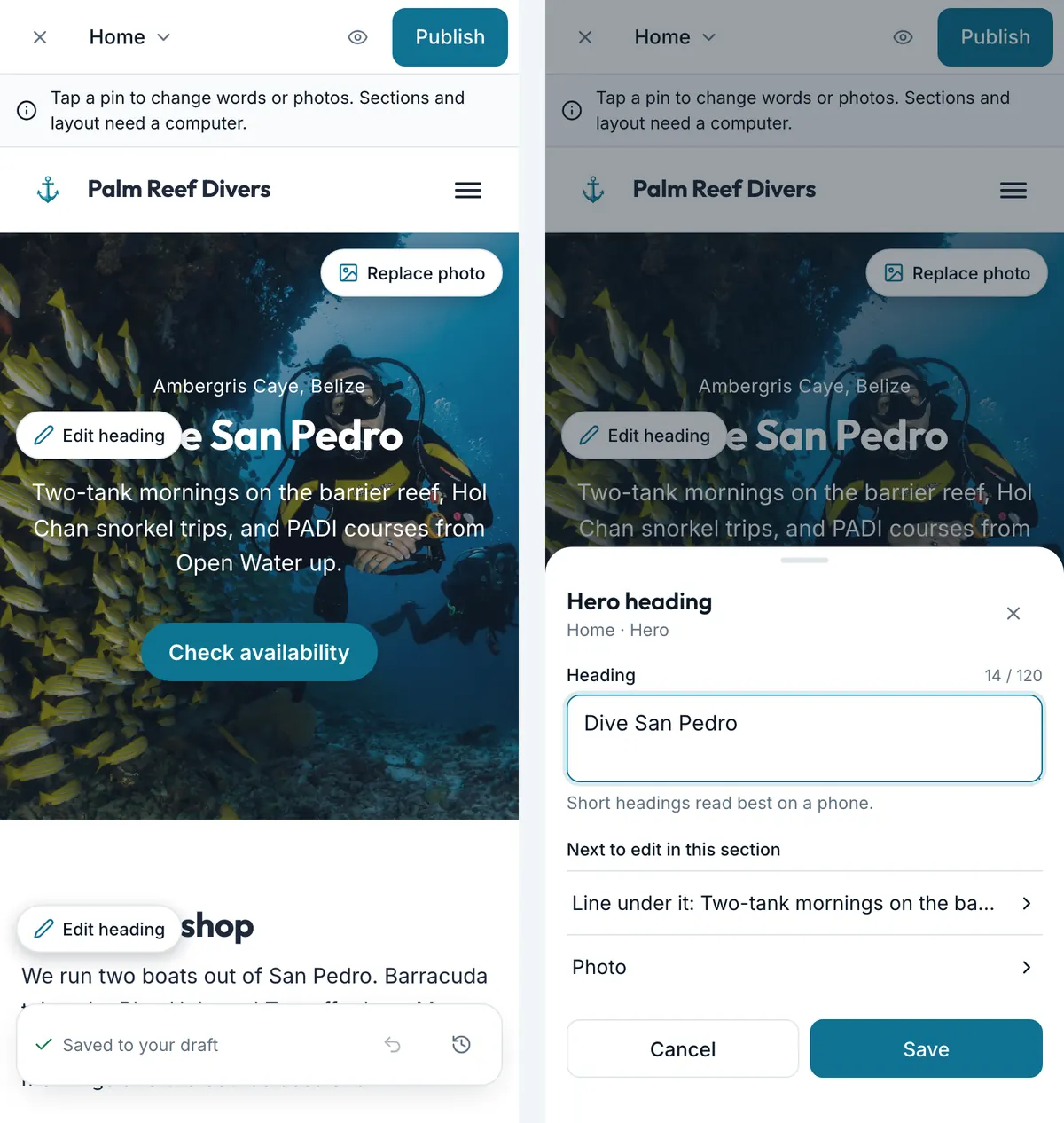
- Open Edit site on your phone. The page shows pins on the words and photos you can change.
- Tap a pin, such as Edit heading or Edit text.
- Change the words, then press Save, or Cancel.
- Next to edit in this section takes you to the next words or photo.
Change a photo, and use the media library
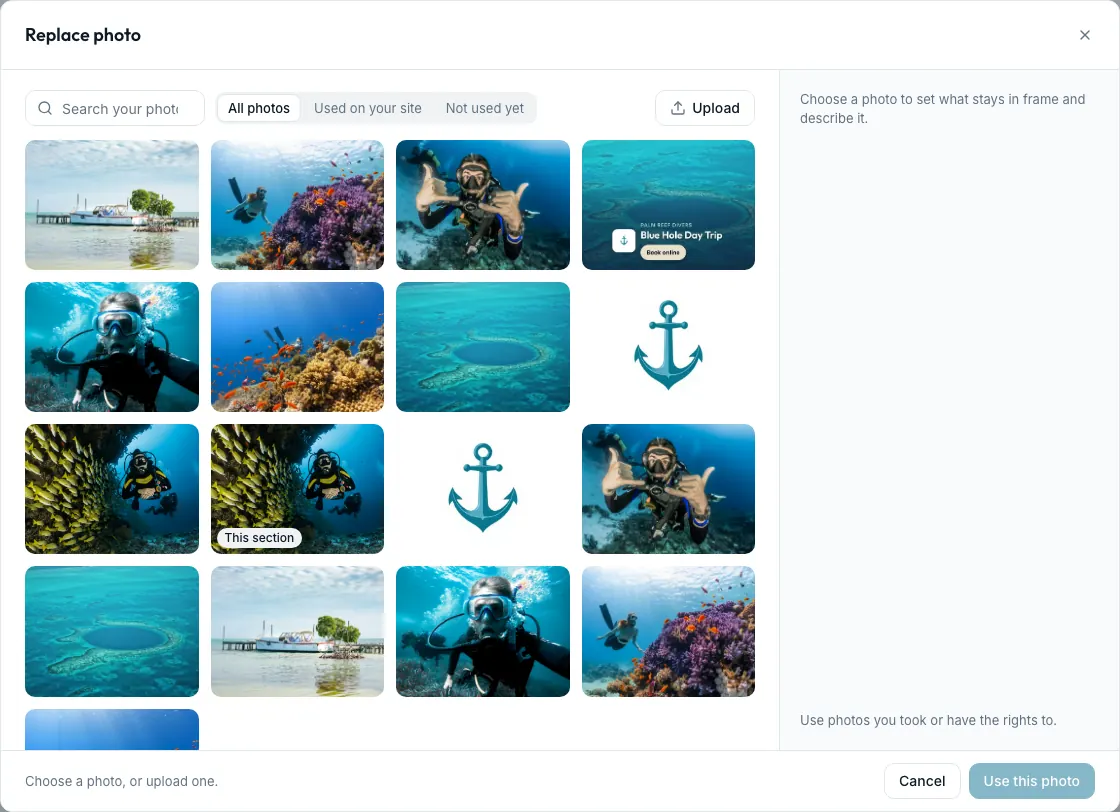
- Select the section and press Change beside its photo. The media library opens.
- Search your photos, or show All photos, Used on your site or Not used yet.
- Press Upload to add photos: JPG, PNG or WebP, up to 25 MB each.
- Choose a photo. Drag the circle onto what matters, so it stays in frame on every screen.
- Describe the photo for people who can't see it. A photo needs a description before you can use it.
- Press Use this photo, or Cancel.
Back in the section, Focal point shows what stays in view, with a small crop On a computer and On a phone.
On a phone, tap Replace photo on the page. Press Take a photo or Your photos, drag the circle onto what matters, and fill in Describe the photo.
Put a photo behind a section
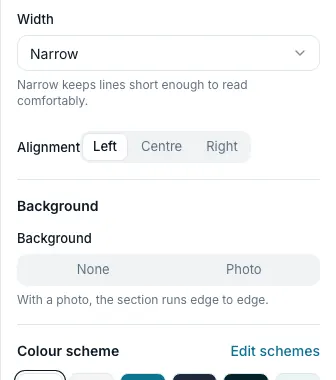
Every section has a Background setting except the hero, the header, the footer and an activity page's live part, which have photo settings of their own or none. With a photo, the section runs edge to edge.
- Select the section. Under Background, choose Photo and pick a picture.
- Use Darken the photo to keep the words readable. If the words are hard to read on your photo, Seascape says where and offers to darken it just enough.
- Height makes the section fit its words, tall, or the full screen.
Change colours, fonts and style for the whole site
The editor's Design tab changes every page at once.
- In the editor, open the Design tab on the right.
- Look gives you a starting point (Reef, Blue Hole or Caye).
- Set your Primary, Accent, Background and Text colours.
- Choose your Fonts: a heading font and a text font.
- Set Corners (from Square to Pill), Buttons (Filled, Outline or Soft) and Spacing (Compact, Normal or Airy).
- Under Colour schemes, choose the style of each section on the page.
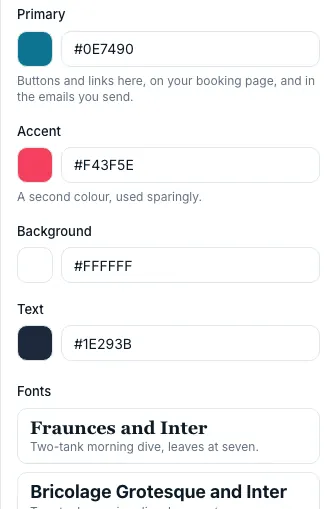
If a colour would leave some writing hard to read, Seascape tells you and keeps your colour, using a readable shade where it is needed.
If your website uses a design system, a change here changes that design system, the same one Settings → Brand and the Design systems page show. Your design systems explains them.
Edit from your phone
On a phone you can change words and photos, and publish.
Caution Saving words on a phone keeps the words and removes their bold, links and lists. Change those on a computer.
- Open Website on your phone and press Edit site.
- Tap a pin on the page, such as Edit heading or Replace photo.
- Change the words or the photo, then press Save, or Cancel.
- Press Publish at the top when you are ready.
Note Adding, moving and styling sections needs a computer.
Still stuck?
Signed in, it can also look at your own shop.
A person reads every one: support@seascape.bz