Guide: Your website, start to finish · Chapter 1 of 9, Getting around
Find your way around Website: draft, preview and publish
Website's three tabs, your free address, the draft and the live site, a preview link, Publish, and throwing a draft away.
Every shop can have a website with booking built in. You build it in Website, in the sidebar. Website has three tabs, and Edit site opens the editor full screen. The settings around your website (your brand, domains, search and sharing) are in Settings, and the Overview links to each one.
Find your way around Website
- In the sidebar, press Website.
- Use the three tabs at the top: Overview, Pages and Design.
- Press Edit site to open the editor. Edit a page explains it.
What each tab is for:
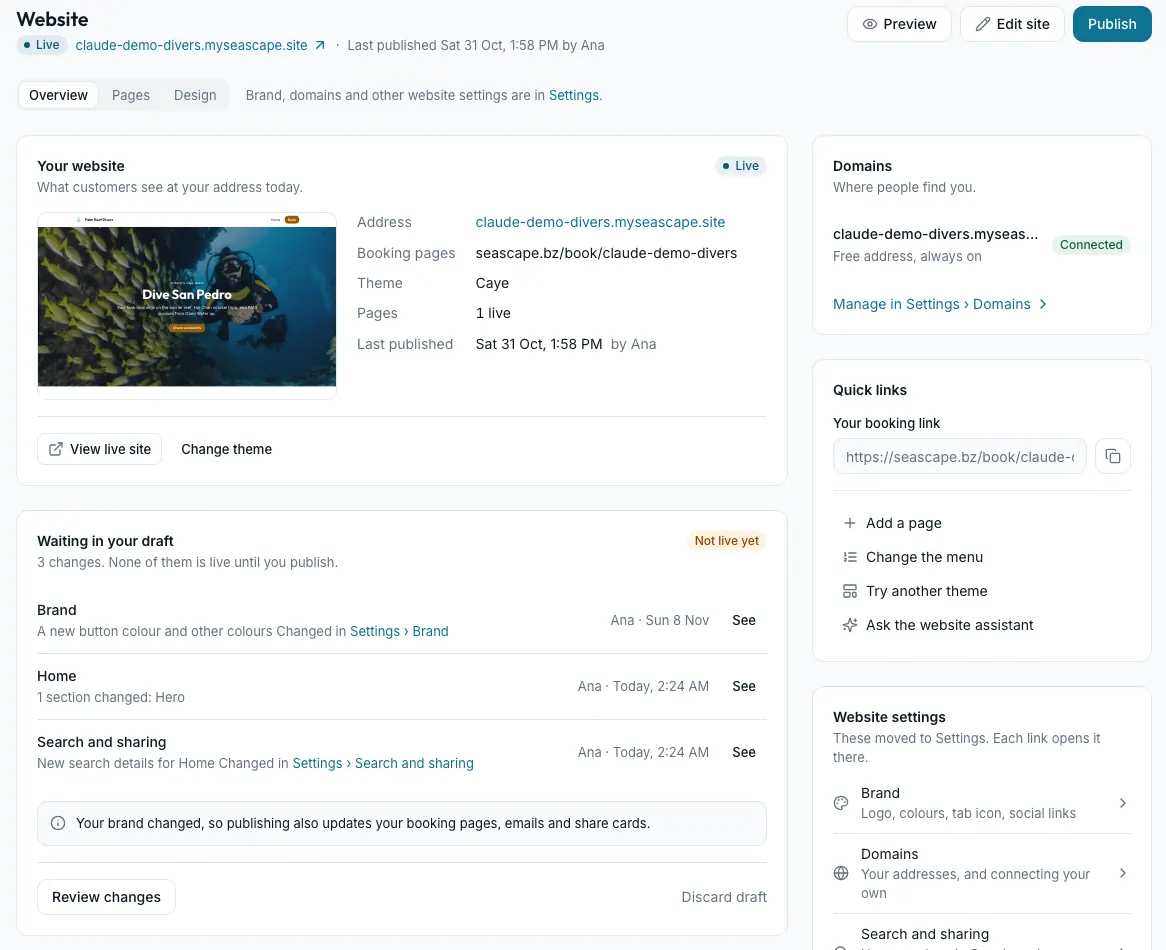
- Overview is the front page of your website. Your website shows whether it is Live, its address, your booking page, the theme, how many pages are live and who published last. View live site opens it.
- Waiting in your draft lists every change that isn't live yet: pages, brand changes and search details. See opens each one.
- Domains shows your addresses. Quick links has your booking link with a copy button, Add a page, Change the menu, Try another theme and Ask the website assistant.
- Website settings links to the website settings that live in Settings: Brand, Domains, Search and sharing and more.
- Pages lists your pages, your activity pages and your menu: see Pages and the menu.
- Design is where you compare themes: see Your website's look.
On a phone, the three tabs stretch across the top of the screen, and Overview has Edit site and Publish under the picture of your site.
Start your website
A shop with no website yet sees You don't have a website yet on Overview. Nothing goes live until you publish.
- In the sidebar, press Website.
- Press Set up your look to start from your colours, fonts and logo: see Set up your look. Or press Start with a simple site.
- In the editor, press Set up my website. Seascape builds a home page with your shop's name, your activities and your next departures, plus an About page and a Contact page.
Anything you chose before your website existed is kept: the tagline, locked logos and social links in Settings → Brand, a theme you picked, and the design system you use.
Your free address
Every shop gets a free web address, like yourname.myseascape.site. It shows beside the Live badge at the top of Website. It always works, even after you connect a domain of your own. Your own address explains addresses.
Your draft and your live site
Your website has two versions:
- The draft is what you are working on. Every change saves to it as you go, and the editor says Saved to your draft.
- The live site is what visitors see. It changes only when you press Publish.
The draft also holds page names, addresses and the menu, a new theme, and brand changes made in Settings → Brand.
Show someone a preview before you publish
- Press Preview at the top of Website, or at the top of the editor.
- Seascape opens your draft in a new tab, on a link of its own. Send that link to someone to check.
Note A preview link works for an hour. Press Preview again for a fresh one.
Publish your website
Publishing never changes prices, deposits, terms, waiver text or bookings already made.
- Press Publish at the top of Website or the editor. Review changes on the Overview opens the same window.
- Seascape lists what goes live, and asks once.
- If your brand colour changed, the list also names every other place it shows: your booking pages, trip calendar, booking popup, emails and share cards.
- If your draft still has a blank in double square brackets, Publish lists it first. See Blanks to fill in.
- Press Publish now.
Throw away your draft
Discarding never changes your live site. Pages that were never published are removed from the draft.
- On Overview, press Discard draft.
- Seascape asks first. Press Discard draft again, or Keep it.
- Every page, your theme, your brand and your menu go back to what is live now.
- Changed your mind? Undo discard brings the draft back, until you change something else.
Note Discard draft shows while your site is live, and only on a computer.
Staff permissions Seeing Website needs See the website editor, and changing anything needs Edit the website. Both start off for staff. Change them in Settings → Users and permissions.
Still stuck?
Signed in, it can also look at your own shop.
A person reads every one: support@seascape.bz