Guide: Your website, start to finish · Chapter 2 of 9, Choosing and changing your look · article 1 of 2
Your website's look: themes and Set up your look
Compare themes on your own pages, preview one full screen, and start a fresh look with Set up your look.
Your look has two parts, and you can change either one without the other:
- The theme is how your pages are laid out.
- The design system is your colours, fonts and corners. Any design system works on any theme. See Your design systems.
Your logo, name and voice belong to your brand, in Settings → Brand, and stay the same whatever you choose. Nothing here changes your live site until you press Publish.
Compare themes on your own pages
- Go to Website → Design.
- The theme you use now is at the top, marked In use now. The others are under Try another theme.
- Use Show this page to show every theme on another of your pages.
- Press Preview on my site to see a theme full screen, with your own words, photos, activities, prices and dates.
- In the preview, switch themes and switch between a computer and a phone at the top. Try its suggested fonts and corners shows the theme's own fonts and corners.
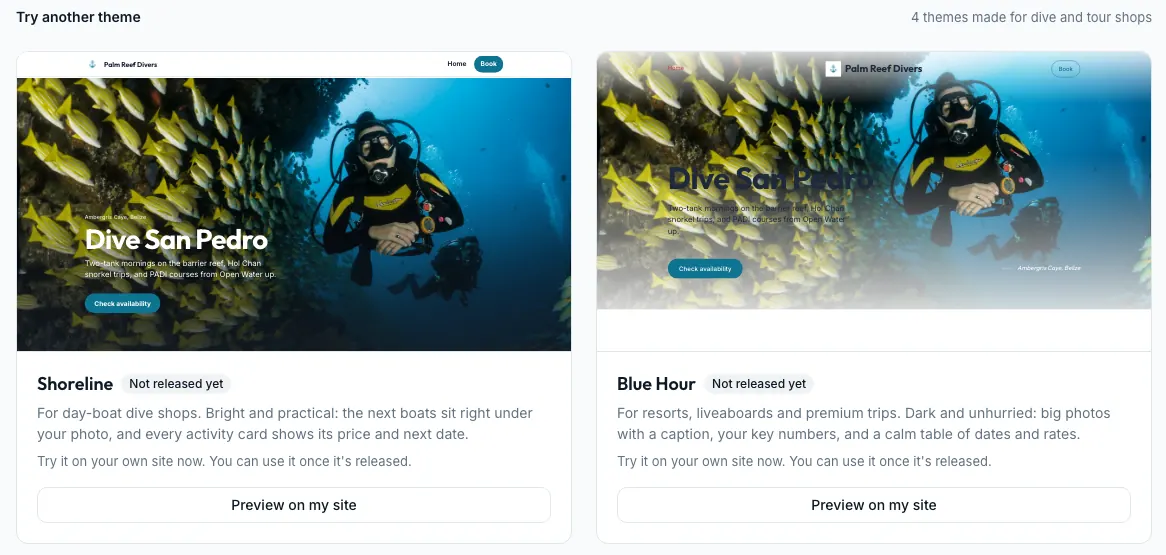
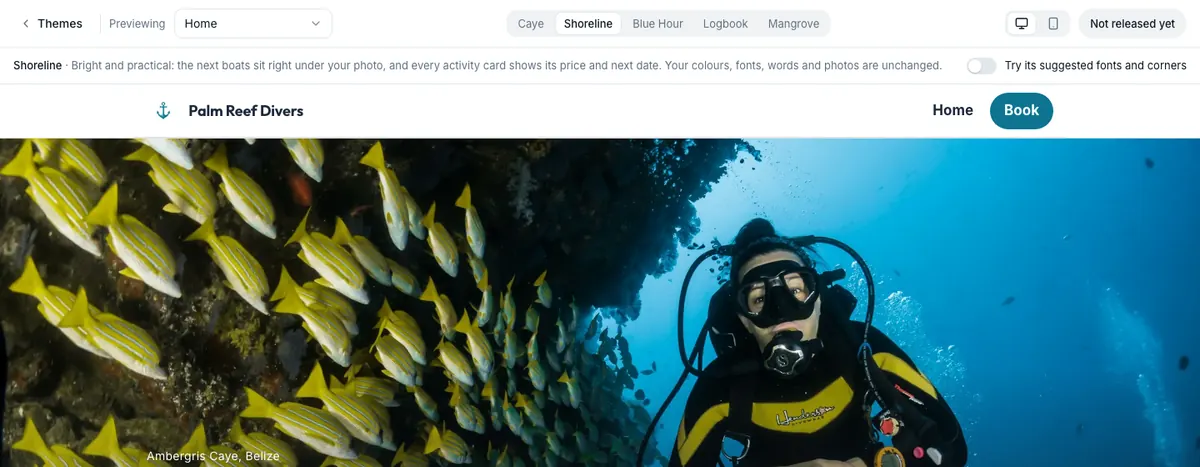
Not yet Shoreline, Blue Hour, Logbook and Mangrove say Not released yet. You can preview them on your own site, but not use them yet.
A theme made only for your shop is marked Made for you, and no other shop can see it. Under the theme in use, Design says which design system it is shown with, beside Change, or that your website uses its own colours and fonts.
Switch to another theme
Use this theme shows only on a theme your shop may use. While the gallery themes are in preview, that is a theme made for your shop or one Seascape has allowed it.
- On Website → Design, press Use this theme.
- Seascape lists what stays (every page and word, your photos, activities and prices, your logo and colours, your addresses) and what changes. Tick whether to take the theme's own fonts and corners.
- Press Use and the theme's name, such as Use Caye. Only your draft changes.
You can switch back at any time without losing words or photos. Customise in the editor opens the editor, whose Design tab fine-tunes your colours and fonts: see Edit a page.
Start a fresh look with Set up your look
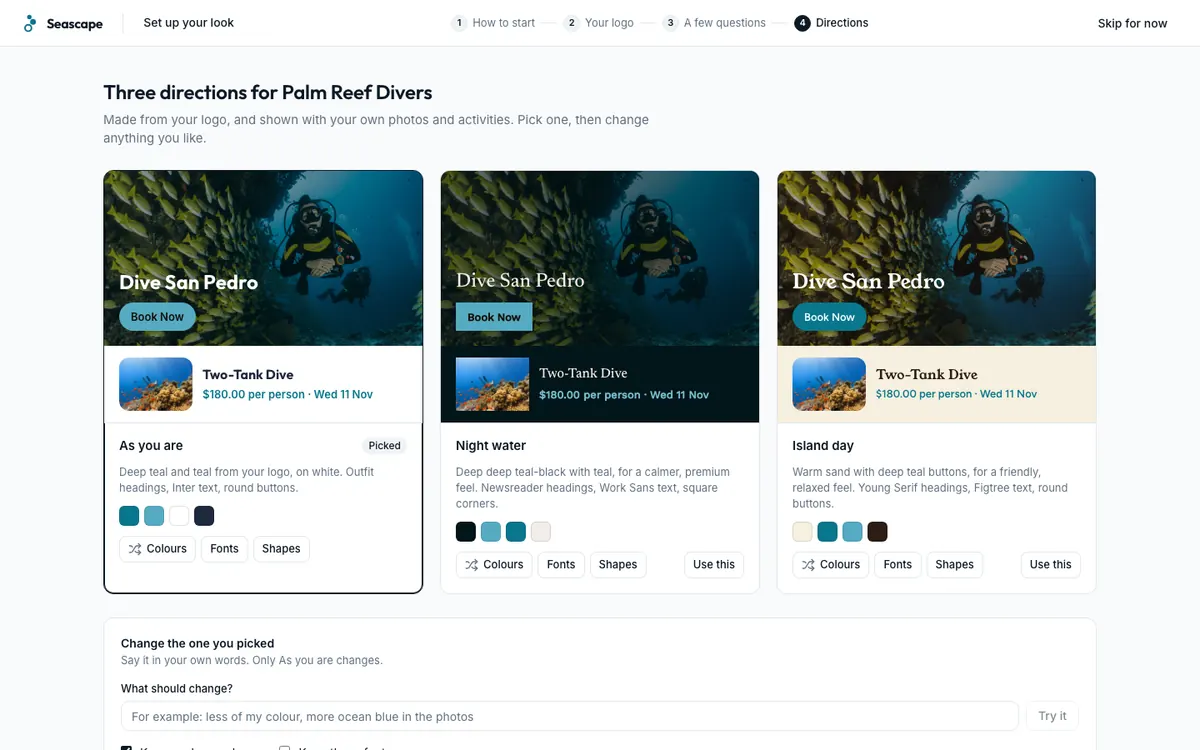
Set up your look shows three directions for your shop, painted on your own name, photos and activities. Your live site changes only when you publish.
- Open it. A shop with no website yet presses Set up your look on Overview or Design. A shop with a website presses Start again with Set up your look on Website → Design.
- Under How do you want to start?, pick From my logo, From my website, Describe it or Pick a style.
- Press Next. Seascape skips any step it doesn't need.
- Compare the three directions: as you are, a darker one and a lighter one. With Pick a style, the three are Seascape's ready-made looks instead. On any of them, Colours, Fonts or Shapes tries another option.
- To change the one you picked in your own words, type under Change the one you picked and press Try it. Only that one changes. Keep my logo colours and Keep these fonts hold those as they are.
- Press the button that names the one you like, such as Use Night water. It goes into your draft, and Design opens.
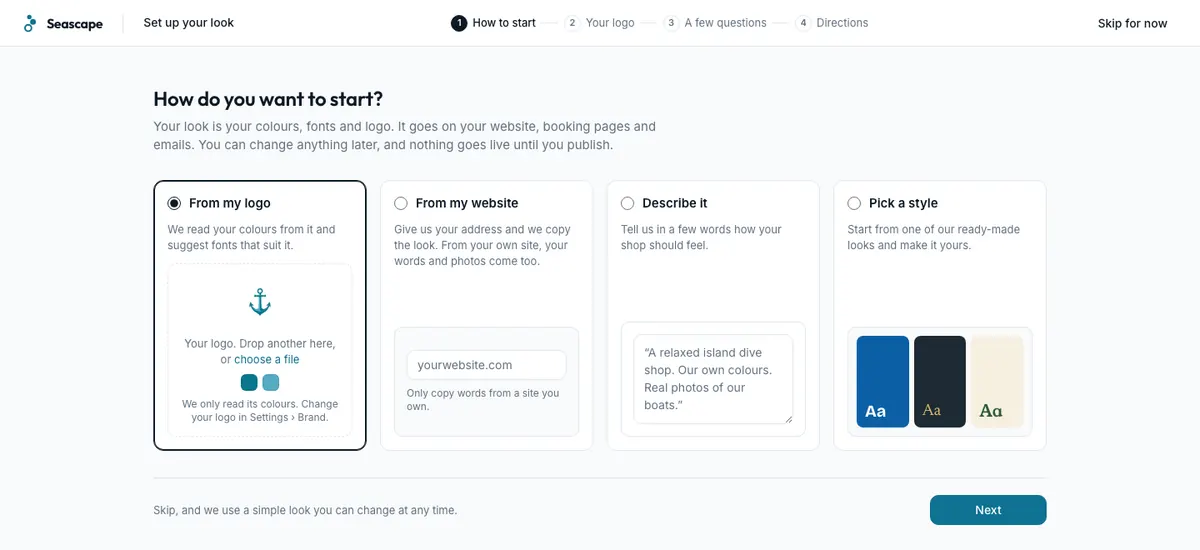
What each start does:
- From my logo reads the colours of your logo, the one you have or a file you drop there, and suggests fonts that suit it. It only reads the colours: your logo itself is changed in Settings → Brand.
- Pick a style starts from one of Seascape's ready-made looks: Shoreline, Blue Hour or Mangrove, each with its own colours, fonts and corners. The three directions are those looks, shown on your own name, photos and activities. Picking one changes your colours, fonts and corners, not your theme: you choose the theme on Design next.
- Describe it opens the editor, where the website assistant makes a first draft. From my website does the same for your own website; another business's website gives you three directions in its colours and fonts instead. See The website assistant.
Skip for now goes to Website → Design and keeps the look you have. If you have no website yet, it starts one in a simple Seascape look you can change at any time. Nothing goes live until you publish.
If your website uses a design system, using a direction changes that design system itself, just as Settings → Brand does. Your website and every place that design system shows change together.
The small Powered by Seascape link at the bottom of your pages is not part of your look. It is switched in Settings → Advanced: see Powered by Seascape.
Still stuck?
Signed in, it can also look at your own shop.
A person reads every one: support@seascape.bz