Guide: Your website, start to finish · Chapter 5 of 9, The website assistant
The website assistant
Ask the website assistant to build or change your pages in your own words, check its change list, apply it, and undo a whole turn.
The website assistant builds and changes your pages when you ask in your own words. It lists every change first, and nothing changes until you press Apply. It works on your draft only and never publishes.
Ways to start the website assistant
- In the editor: press Assistant at the top.
- On one section or some words: select it and press Ask about this on its toolbar.
- From the Overview: press Ask the website assistant under Quick links.
- On an activity page: press Ask the assistant to write it under Start this page.
- For a whole new site: in Set up your look, choose Describe it or From my website, then press Next. The editor opens with the assistant making a first draft.
From my website depends on whose website it is. Your own (the one in Settings → General → Your other website, a domain you connected, or your free address) brings its words and photos across, up to 10 pages, and copies its photos into your media library. Any other business's website only lends its colours and fonts, as three directions to choose from.
Ask the website assistant for a change
- In the editor, press Assistant.
- Type in Ask for a change at the bottom of the panel, for example "put the Blue Hole trip nearer the top". The chip under it shows what you are asking about.
- Send it. The assistant reads your page and what Seascape knows about your shop.
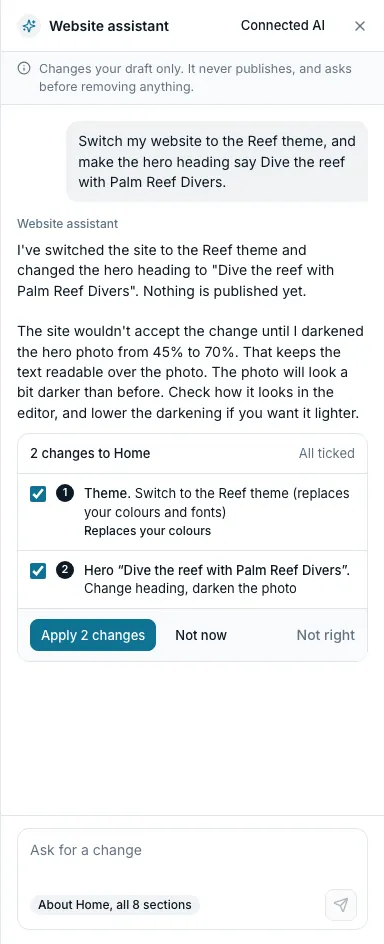
- It answers, then lists every change it would make, numbered and ticked.
- Untick any change you don't want.
- Press Apply, which says how many, such as Apply 2 changes. Or press Not now to leave everything as it is.
When a change takes something out
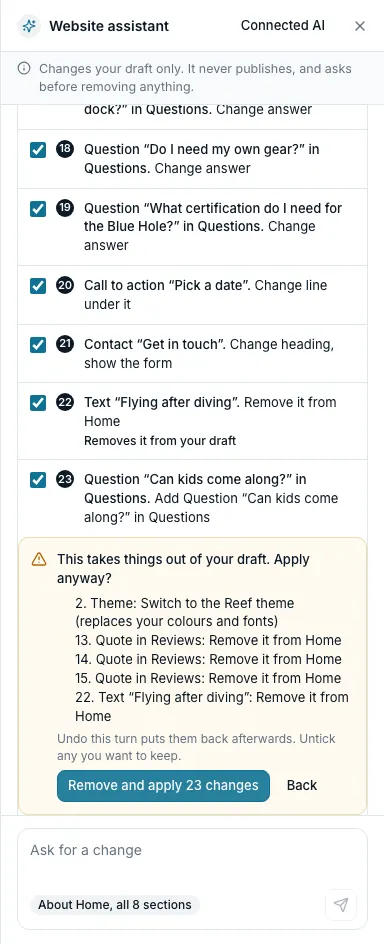
A change that removes something says Removes it from your draft on its row. A theme switch says Replaces your colours. The assistant asks before it applies either.
- Press Apply. A box lists those changes and asks: This takes things out of your draft. Apply anyway?
- Press Remove and apply to go ahead, or Back to untick them first.
After you apply
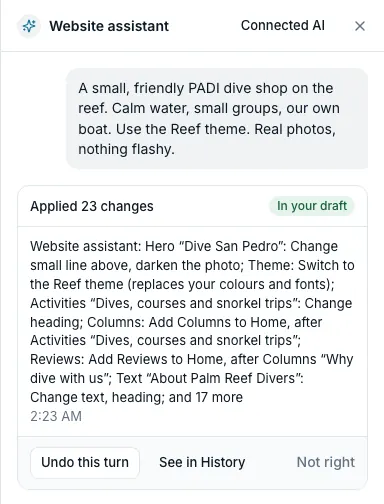
The panel says how many changes it applied and marks them In your draft.
- Undo this turn takes the whole turn back.
- See in History shows it there, as one change.
- Not right tells Seascape what was wrong, in a few words if you like.
Big jobs, stopping, and busy times
- A big job can stop part-way with the changes so far. Continue carries on from there.
- Stopping a turn early changes nothing.
- If the assistant is busy, it says so. Try again in a few minutes.
What the website assistant never does
- It never publishes. Only you press Publish.
- It never invents prices, dates or seats. Those always come from Activities.
- Where it doesn't know a fact about your shop, it leaves a blank like [[how many divers?]] for you to fill: see Blanks to fill in.
- It never takes anything out of your draft without asking first.
- It can't add Custom HTML, or change your brand (tagline, description, voice or logos).
You can also connect your own AI, such as Claude or ChatGPT, in Settings → AI assistants. It changes your draft only, and it never publishes. See Connecting an AI assistant.
Still stuck?
Signed in, it can also look at your own shop.
A person reads every one: support@seascape.bz