Guide: Your website, start to finish · Chapter 6 of 9, Getting found and shared · article 1 of 2
Search and sharing: how you look on Google and when your site is shared
Choose how your website looks on Google and in a shared link, keep a half-built site out of search, and keep old links working.
Settings → Search and sharing decides how your website shows up on Google, and what people see when someone shares your link. Saved changes here show within a few minutes, without publishing. Your tab icon and what your pages say still go live only when you publish your website, which is why the page has Publish at the top too.
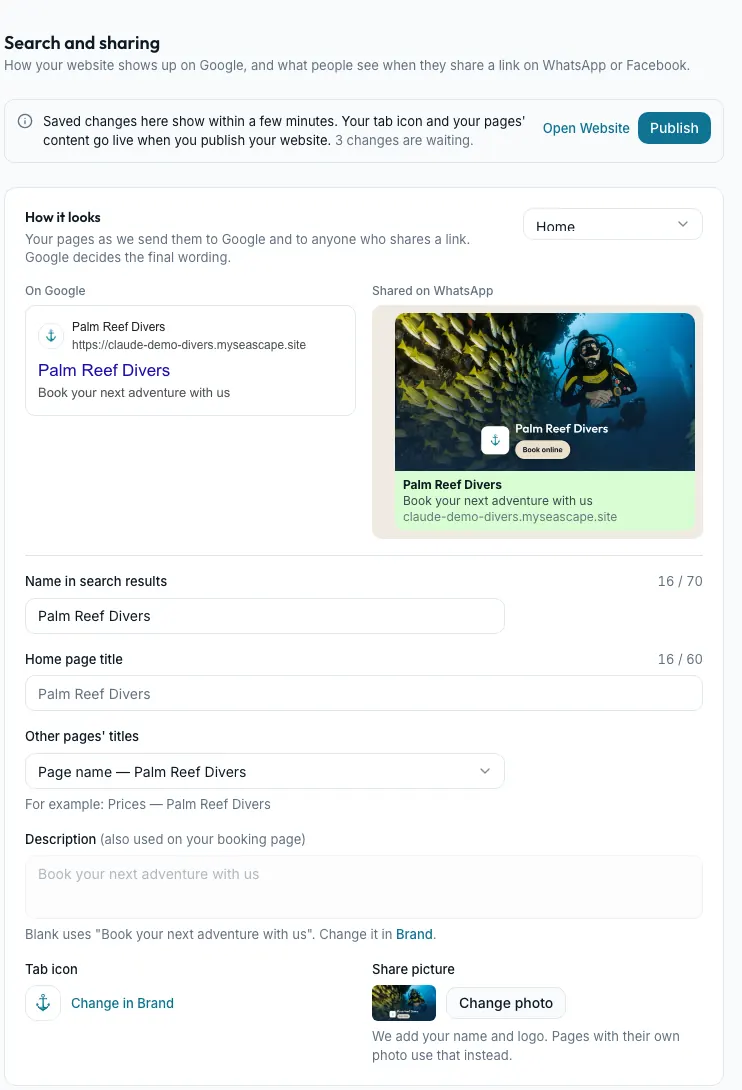
Set how you look on Google and WhatsApp
- Go to Settings → Search and sharing.
- How it looks previews your page On Google and Shared on WhatsApp. Pick another page at the top right to preview it.
- Set your Name in search results and Home page title, then press Save on the Unsaved changes bar.
- Choose Other pages' titles. It saves as soon as you pick one.
- Your description is your Short description in Settings → Brand, and your tab icon is changed in Brand too. Both go live when you publish your website.
Set each page's search title and description
Pages and activities lists every page and activity, with its title and whether it has a description.
- On Search and sharing, find Pages and activities.
- Press Edit on a page to change its title and description, or to hide it from search.
These are the same fields as In search results on the editor's Page tab. A page with no title of its own uses its page name and your shop's name. Changed in the editor, they wait for Publish like the rest of the page, so Google never sees a half-written title. Payment, waiver and guest pages are always hidden from search.
The picture when someone shares your link
A link sent on WhatsApp, Facebook or iMessage shows a picture made for your shop: your top photo, with your main logo, your shop's name and Book online.
- To choose the picture yourself, press Change photo under Share picture.
- Choose Add a photo behind your card to use a photo you pick, Upload your own finished image to use your own image as it is, or Use the automatic card to go back.
Another page shows the photo at its top, or your logo if it has none. A link to one activity shows that activity's name and photo.
Keep a half-built site out of Google
Any shop can hide its free address (yourname.myseascape.site) from Google and Bing. Your links, booking and payments keep working.
- Under Search engines and AI, turn on the switch that says Hide, followed by your free address. It is off to start with.
- Turn it off again when your site is ready.
The other switches need your own domain, because search engines read those choices from your own address:
- Hiding your own domain asks you to type the domain to confirm, and also turns AI answers off.
- AI answers can use your site lets ChatGPT, Claude, Gemini and others quote you and link to you.
- AI training can use your site lets companies learn from your pages. It doesn't change whether you appear in answers.
- View robots.txt shows the file search engines read. Each service, custom rules and history lets you choose Allowed or Refused for each service, add your own rules, and see every change.
Details for search engines lets Google show more about you: your business details and opening hours, your activities and prices, and your trip dates. On your free address all three are always on.
Keep old links working with redirects
Rename a page or an activity, and its old address forwards to the new one by itself, in one step, even on a free address. An address that nothing forwards shows Page not found, never your home page.
- Moving from Squarespace, Wix or another site? Under Redirects, press Add redirect, or Import CSV for many at once.
- Type the Old address, like /divetours/bluehole, and where it Goes to.
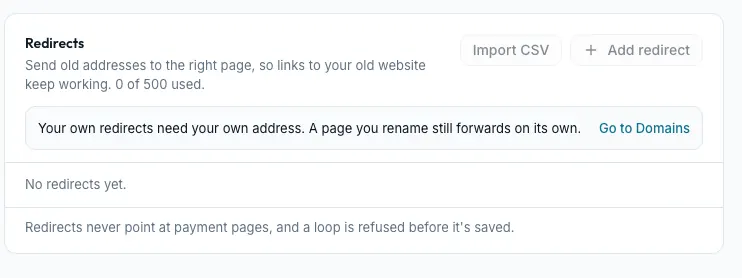
Note Your own redirects need your own domain, so on a free address Add redirect and Import CSV are greyed out. You can add up to 500, and the automatic ones don't count.
Verification codes and Show “Powered by Seascape” are in Settings → Advanced: see Advanced.
Still stuck?
Signed in, it can also look at your own shop.
A person reads every one: support@seascape.bz