Guide: Your website, start to finish · Chapter 6 of 9, Getting found and shared · article 2 of 2
Connect Google: Analytics and Search Console
Connect your own Google account so Seascape sets up Google Analytics and Search Console, and see how people find you on Google.
Connect your own Google account, and Seascape sets up Google Analytics and Search Console for your website. The accounts stay yours.
Connect Google
- Go to Settings → Marketing and analytics and press Connect Google.
- Sign in with the Google account that should own your figures, and tick every box Google shows. The Seascape page waits and updates itself when you finish.
- If a box wasn't ticked, or you cancelled, the page says so under Google. Press Connect again and tick every box.
Staff permissions Connecting Google needs Connect Google and Meta, which Owners and Admins have.
Set up Google Analytics
- Under Google Analytics, choose your account and either an existing property or the new one Seascape offers to create.
- Tick Google's statement, in Google's own words. Seascape can't accept it for you.
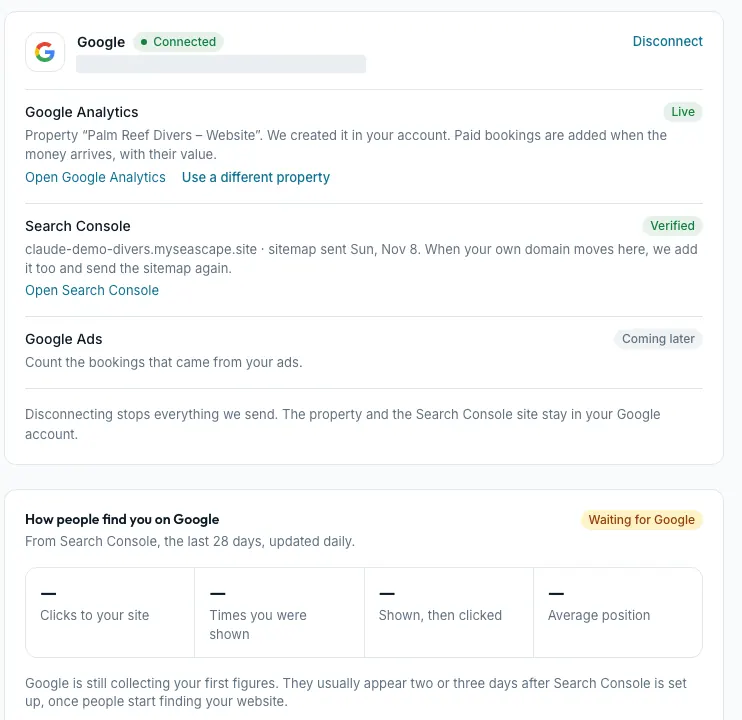
- Press Set up Google Analytics. Once it says Live, Use a different property lets you switch.
When a booking made online is paid, Seascape tells your Google Analytics its booking reference and its total, with tax and without tips, in your booking currency. A refund is sent as a refund. Your customers' names, emails and phone numbers are never sent.
Set up Search Console
- Press Set up Search Console. Seascape puts Google's code on your website, asks Google to check it, adds your site and sends Google your list of pages.
- Checking can take a few minutes. Check again asks once more.
See how people find you on Google
How people find you on Google shows the last 28 days beside the 28 days before: clicks to your site, how many times you were shown, how often people clicked after seeing you, and your average position.
- The first figures usually appear two or three days after setup. Until then the card says Waiting for Google.
- Top searches lists what people typed before they found you, and Top pages the pages they landed on.
- Pages Google can't read lists pages Google can't show. An old address that isn't found has Add a redirect; a page Google found but isn't showing yet has Add a description. Both open Search and sharing.
Ask visitors before tracking them
Your website asks each visitor first, with a cookie banner in your own colours. Nothing is tracked until they press Accept, and Decline is as easy. Tracking runs only on your website, never on your booking, payment, waiver or check-in pages.
- Under Visitor privacy, press Create a privacy page. A starter page goes into your draft.
- Fill in the parts in square brackets, and publish it.
- If you already have one, pick it from Or choose an existing page instead.
Caution Don't add a second Google tag or purchase tag of your own, or bookings are counted twice.
Reconnect or disconnect Google
If Google stops accepting Seascape's access, the card says so. Press Reconnect Google; paid bookings keep reaching Google Analytics in between.
Disconnect removes Seascape's access and takes Google's tag and verification code off your website. What was set up stays in your Google account. If an agency runs your analytics, put their tag ID in Settings → Advanced instead.
Not yet Meta (for Facebook and Instagram) and Business Profile say Coming soon. Google Ads says Coming later.
Still stuck?
Signed in, it can also look at your own shop.
A person reads every one: support@seascape.bz