Contents
Your website
Your website and its editor, your look, your address, Google and the website assistant, and your booking page.
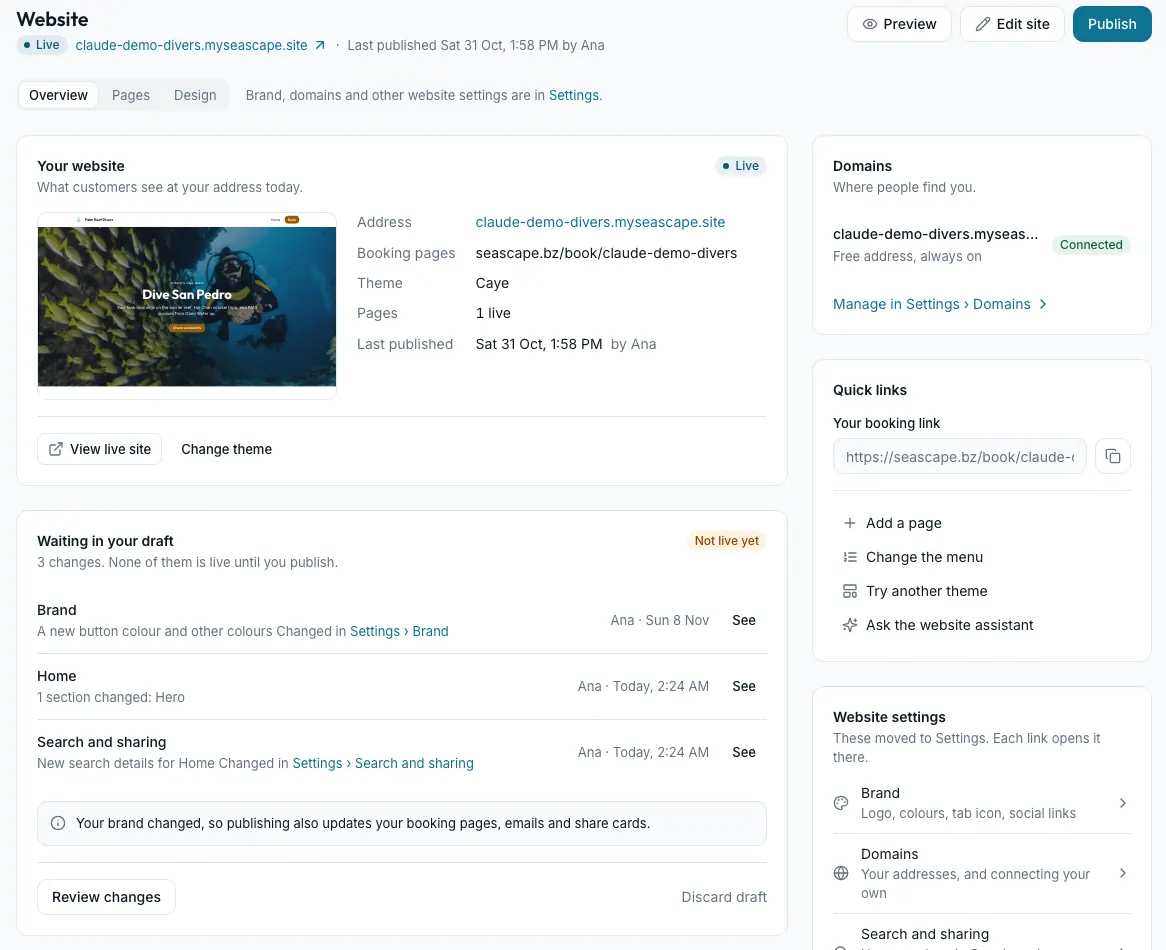
Your Seascape website shows your activities with their real prices, next dates and seats left, taken straight from Activities and Trips, so the site always matches what you sell. You work on a draft. Visitors see your changes only when you press Publish, and publishing never changes prices, deposits or bookings already made.
Every shop gets a free address that always works. With the Your own address add-on, your website can live on a domain you own.
The three things you'll do first
- Choose your lookCompare themes on your own pages, then set your colours and fonts.Your website's look: themes and Set up your look
- Edit your pagesAdd sections, change words and photos, and undo anything.Add sections, and reuse a saved section
- Publish and share itPreview your draft, publish it, and send people your address.Find your way around Website: draft, preview and publish
The guide for this topic
Your website, start to finish
This guide shows you how to build, change and publish your Seascape website, one task at a time. You need no technical knowledge.
Start the guideIn this section
23 articlesBuild and publish
- Find your way around Website: draft, preview and publishWebsite's three tabs, your free address, the draft and the live site, a preview link, Publish, and throwing a draft away.Chapter 1
- Your website's look: themes and Set up your lookCompare themes on your own pages, preview one full screen, and start a fresh look with Set up your look.Chapter 2
- Your design systemsKeep your colours, fonts and corners as design systems: start from a ready-made one, or create one with AI or from your brand files.Chapter 2
- Add sections, and reuse a saved sectionAdd a section from the library, put columns side by side, connect sections to your activities, and save a section to reuse on other pages.Chapter 3
- Edit a page: sections, words, photos and styleSelect, move or hide a section, change words and photos, put a photo behind a section, change colours and fonts, and edit on your phone.Chapter 3
- Undo, restore a version, and two people editing at onceUndo one change, see every change for 90 days, restore a published version, keep your changes when someone else saved, and fill blanks before publishing.Chapter 3
- Pages and the menu: new pages, renaming, deleting and orderAdd a page, rename it or change its address, delete one, change the menu, and add a link to another website in your header.Chapter 4
- Edit an activity's pageGive each activity its own page, add your own sections around its live price, dates and Book button, and choose how that part looks.Chapter 4
- The website assistantAsk the website assistant to build or change your pages in your own words, check its change list, apply it, and undo a whole turn.Chapter 5
- Brand: your logos, tagline, voice, photos and social mediaSet your tagline, logos, colours, fonts, voice, photos and social links, used on your website, booking pages and emails.
Get found
- Search and sharing: how you look on Google and when your site is sharedChoose how your website looks on Google and in a shared link, keep a half-built site out of search, and keep old links working.Chapter 6
- Connect Google: Analytics and Search ConsoleConnect your own Google account so Seascape sets up Google Analytics and Search Console, and see how people find you on Google.Chapter 6
- Connecting an AI assistantLet Claude or another AI assistant read your website, activities, prices and trip dates, and change your website's draft. Only you publish.
Your address
- Your own addressRename your free address, or put your website, booking page and customer links on a domain you own.Chapter 7
- Advanced: Powered by Seascape, embeds, verification codes and the Google tag IDTurn Powered by Seascape off, allow embeds from other websites, add search engine verification codes or an agency's Google tag, and choose Page not found.Chapter 7
Booking from your site
- Booking from your website: booking over your page, seats left, your brand and reviewsHow customers book without leaving your website, showing seats left, your brand on booking pages, your reviews, and your site on a phone.Chapter 8
- Your booking pageFind your online booking page and what customers see on it.
- Putting booking on a website you already haveAdd your booking page or trip calendar to a website you already have.
- The trip calendarShow every upcoming trip on a calendar and let customers request other dates.
- Customer pages: what your customers see, and where its words come fromSee every page your customers open, how much of your brand each shows, and where to change its words.
When something's not right
- Website troubleshooting: changes not showing, and other common questionsAnswers when your website doesn't do what you expect: changes not showing, themes, Set up your look, domains, redirects, Google, the assistant and phones.Chapter 9
- Where every website setting livesFind any website setting by searching Settings, and see which Settings page holds each one and when it goes live.Appendix
- Your Page not found page (404)Choose what visitors see at an address on your website that doesn't exist.
Still stuck?
Signed in, it can also look at your own shop.
A person reads every one: support@seascape.bz