Guide: Your website, start to finish · Chapter 2 of 9, Choosing and changing your look · article 2 of 2
Your design systems
Keep your colours, fonts and corners as design systems: start from a ready-made one, or create one with AI or from your brand files.
A design system is your colours, fonts and corners, used by every theme. A theme is your layout. Change either one without the other: any design system works on any theme. Your logo, name and voice belong to your brand, so every design system shares them.
You can keep several design systems and switch when you like. Your website uses one at a time.
Open your design systems
- Go to Settings → Design systems. It sits under Brand in the Settings list.
- Or press Design systems on Website → Design.
Website → Design, Settings → Brand and Design systems all say the same thing about yours: the one your website uses, or No design system yet, or Not using a design system when you have saved ones but use none. Until then, your website uses its own colours and fonts.
Start from a ready-made design system
A shop with no design system yet can start from one Seascape made. The first design system becomes your website's straight away, in your draft.
- On Design systems, find Or start from a ready-made one.
- Choose Your website now (your current colours, fonts and corners), Reef, Blue Hole or Caye.
- Press Use.
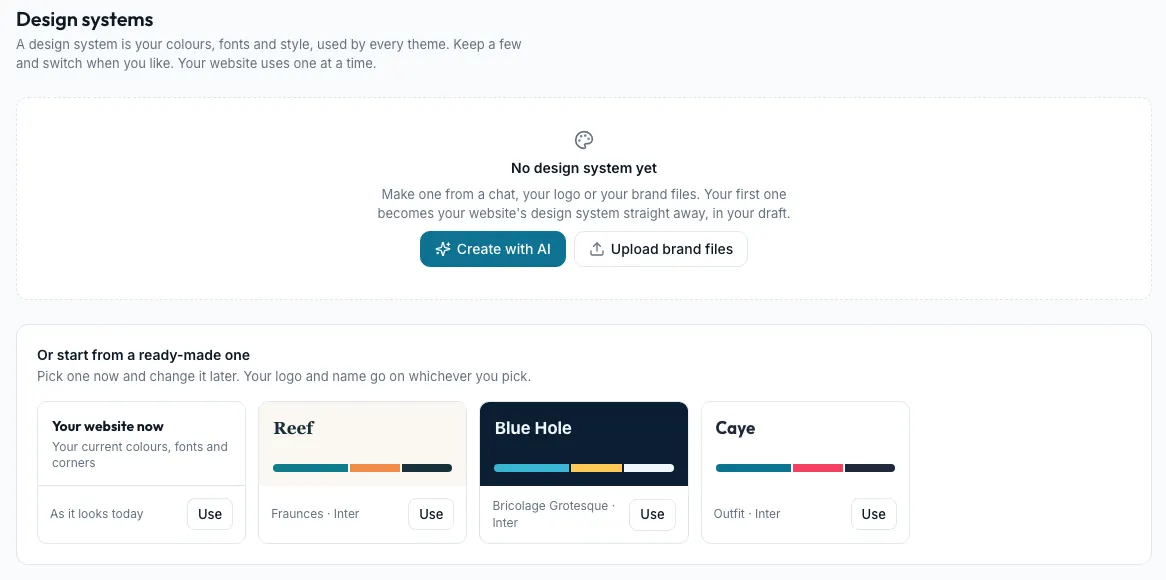
Create a design system with AI
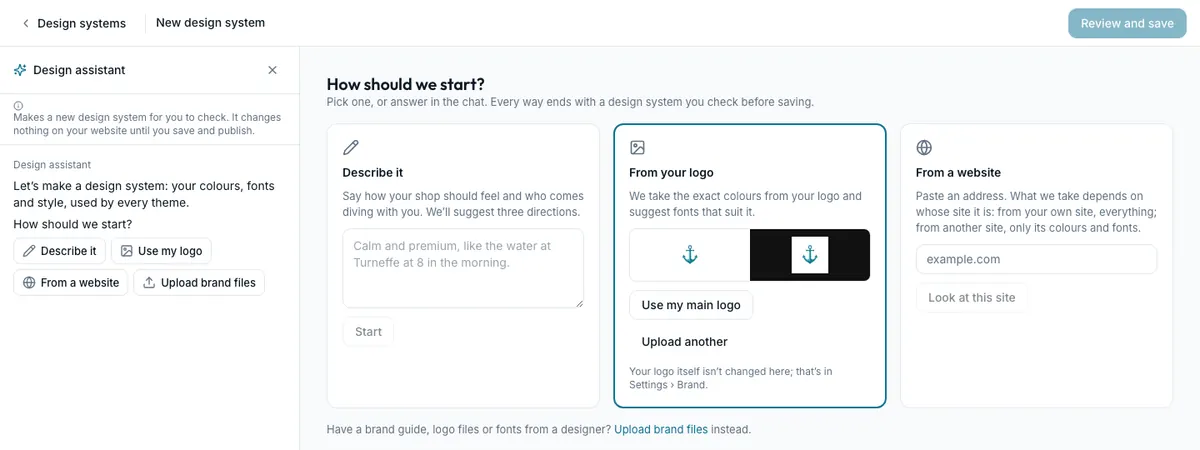
- On Design systems, press Create with AI. The Design assistant opens on the left.
- Choose how to start:
- Describe it: say how your shop should feel, then press Start.
- From your logo: press Use my main logo, or Upload another.
- From a website: paste an address and press Look at this site. From another business's site, Seascape takes only its colours and fonts.
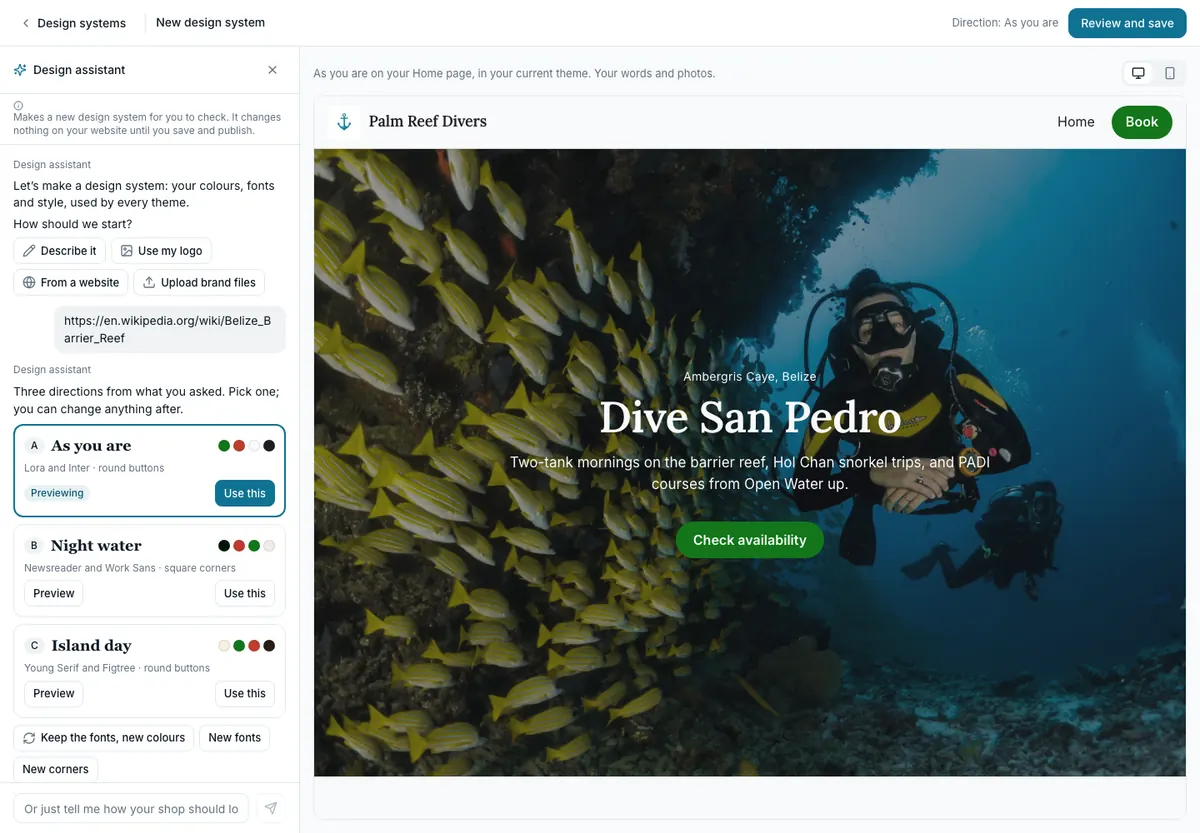
- Compare the three directions on your own home page. Keep the fonts, new colours, New fonts and New corners change one thing at a time.
- Press Use this, then Review and save.
Make a design system from your brand files
Fonts need a licence tick before anything is read. A font you bought often comes with a desktop licence only, and a website needs a web licence.
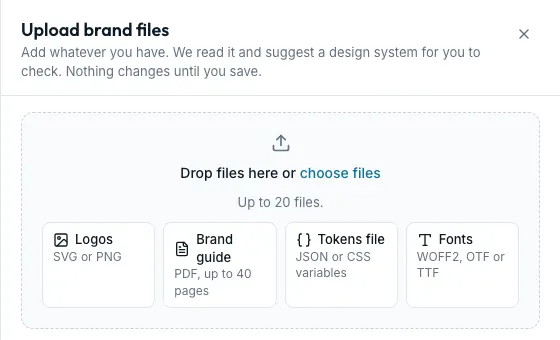
- On Design systems, press Upload brand files.
- Drop up to 20 files: logos (SVG or PNG), a brand guide (PDF, up to 40 pages), a tokens file (JSON or CSS variables) and fonts (WOFF2, OTF or TTF).
- Tick the font licence, or press Remove the fonts.
- Press the Read button, which counts your files. You can Close and keep reading and come back when it's ready.
- Review shows every colour and font, and which file it came from. What I assumed lists anything your files didn't say.
- Press Save as new design system.
A file that can't be used says why, for example an Illustrator file, which needs saving as SVG or PDF first. When two files disagree about a colour, you're asked once, with both side by side.
Use, preview and manage your design systems
Each design system is a card showing your home page in its colours, with its fonts and corners. The one your live website uses is marked In use on your website.
- Press Preview on your site to see a design system on your own pages, in any theme, on a computer or a phone. Previewing changes nothing.
- Press Use. Seascape lists what changes when you publish (your website and, if the main colour is different, your booking pages, trip calendar, emails and share cards) and what stays.
- Press Use in my draft. Until you publish, the one still live says Live on your website.
The ⋯ menu has Rename, Duplicate, Export (a design tokens file other tools can read) and Delete. Delete asks first, and can't delete the one your website uses.
Colours that stay readable
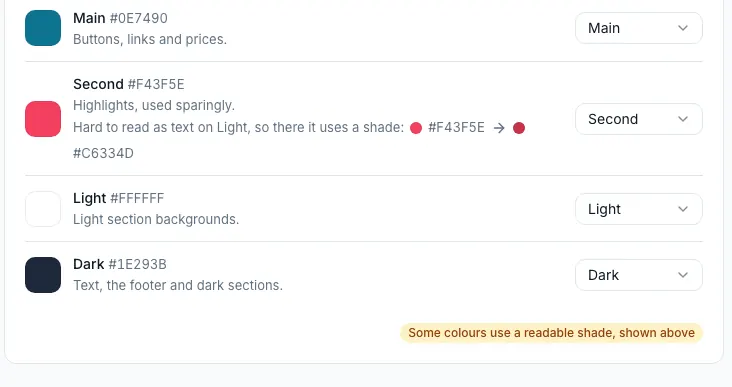
Your exact colours stay exact. Where one would be hard to read, such as white writing on a light colour, Seascape uses a lighter or darker shade of it there, and says so beside that colour. Nothing that is hard to read can be saved.
Staff permissions Seeing design systems needs See the website editor, and making, using or changing one needs Edit the website.
Still stuck?
Signed in, it can also look at your own shop.
A person reads every one: support@seascape.bz