Guide: Your website, start to finish · Chapter 4 of 9, Pages · article 1 of 2
Pages and the menu: new pages, renaming, deleting and order
Add a page, rename it or change its address, delete one, change the menu, and add a link to another website in your header.
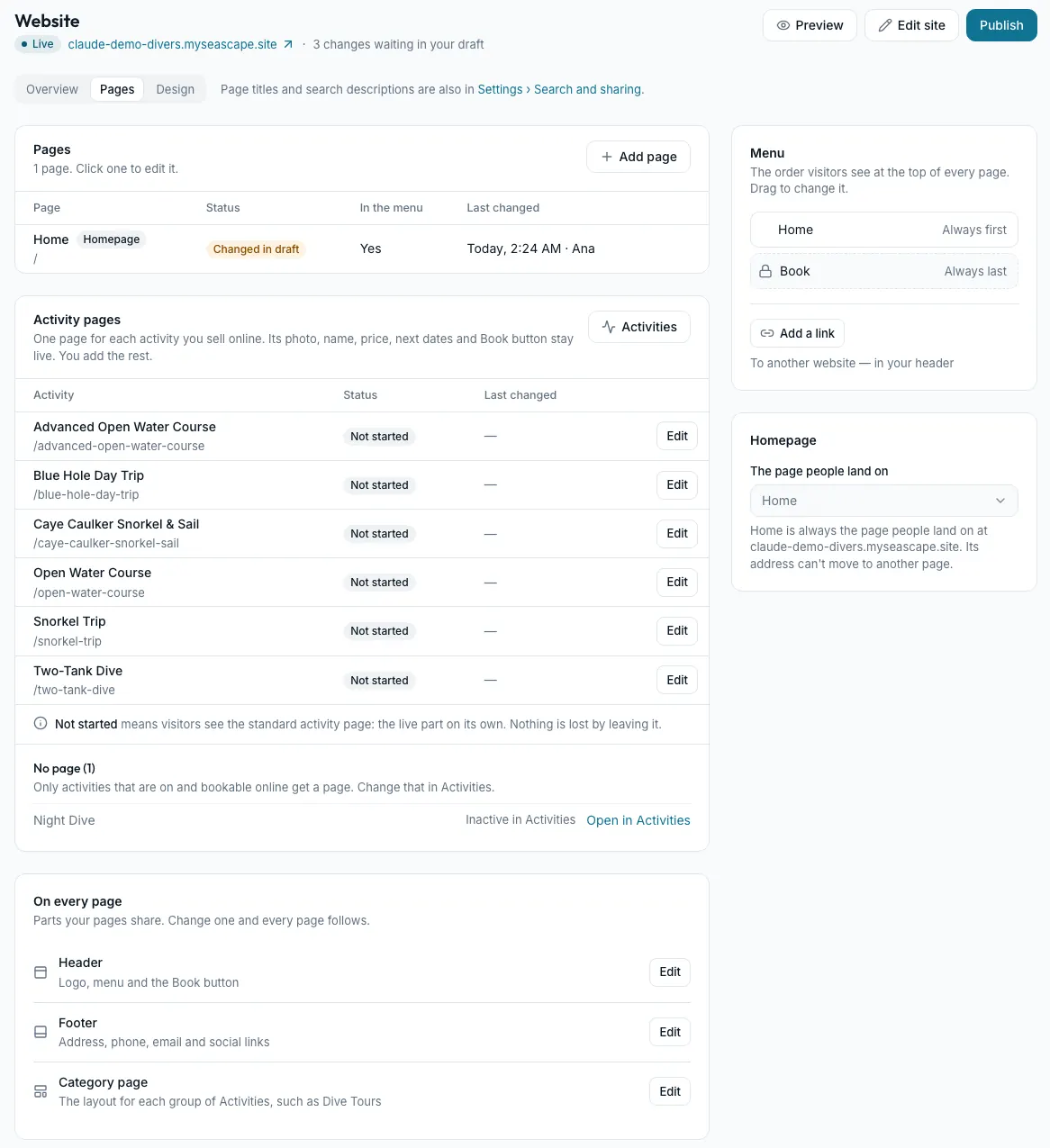
Your website's pages are listed on Website → Pages. Names, addresses and the menu all wait for Publish, like every other change.
See all your pages
- Go to Website → Pages.
- Pages lists each page with its status (Live, Changed in draft, or Only in your draft), whether it is in the menu, and when it last changed. Your home page is marked Homepage.
- Activity pages lists one page for each activity you sell online: see Edit an activity's page.
- On every page lists the Header, the Footer and the Category page (the layout for each group of activities), each with Edit. Change one and every page follows.
- Menu and Homepage are on the right.
The ⋯ menu on a page's row has Edit, Add to the menu or Take out of the menu, Duplicate, Preview and Delete page. Duplicate copies a page as visitors see it, outside the menu.
Add a page
- On Website → Pages, press Add page. In the editor, press Add beside Pages.
- Type a Name, such as How to Book. In the editor the box is called Page name.
- Check the Address: lowercase letters, numbers and dashes.
- Press Add page.
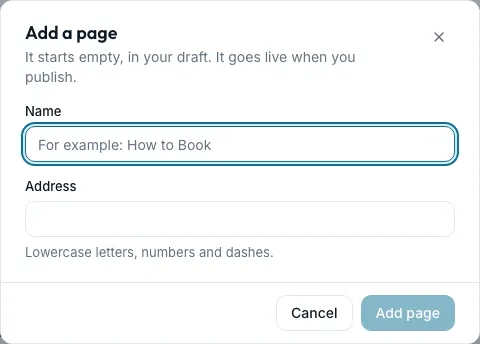
The new page starts empty, in your draft, and goes live when you publish. Add sections to it: see Add sections.
Rename a page or change its address
- In the editor, open the page and choose the Page tab.
- Change the Page name (what the menu shows) or the Address.
- Turn Show in the menu on or off.
- Under In search results, set the Title and Description Google shows. Leave the title blank to use the page name and your shop's name.
- Turn on Hide from search engines to keep the page out of Google. The page stays on your site.
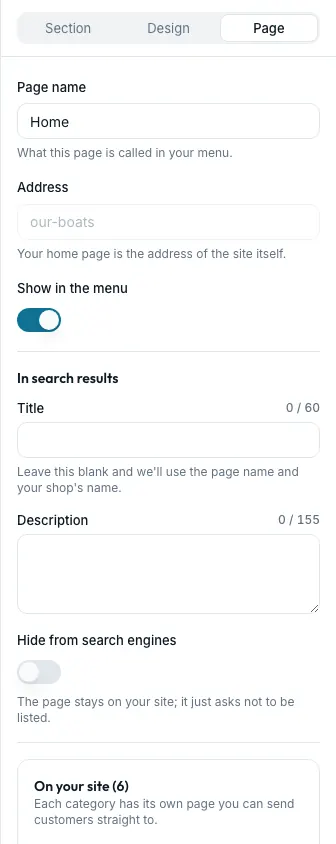
All of these wait for Publish, and Undo works on them. Once you publish a new address, the old one forwards to it. Your home page's address is always your site's own address.
Delete a page
When you publish, a deleted page's address stops working, and it does not forward anywhere. Anyone with the link sees Page not found.
- Open the page's ⋯ menu on Website → Pages and choose Delete page.
- Seascape asks first. Press Delete page again, or Keep it.
- A live page stays on your site until you publish, marked Will be removed when you publish. Keep page, in its ⋯ menu, changes your mind.
A page that was never published is deleted at once; undo it from History in the editor. Your home page can't be deleted.
Change the menu
- On Website → Pages, find the Menu card.
- Drag pages to change their order. Home is always first and Book is always last.
- A page that isn't in the menu is listed under Not in the menu. Press Add to menu to put it back.
Put a link to another website in your header
The header shows your pages by default. It can show links you write yourself instead, up to six.
Caution With Links I add below, the header shows only the links you add, not your pages. Add a link to each page you still want there.
- On the Menu card, press Add a link. The editor opens.
- Select the Header.
- Set Pages in the nav to Links I add below.
- Add each link with a Label and where it Goes to.
Still stuck?
Signed in, it can also look at your own shop.
A person reads every one: support@seascape.bz