Guide: Your website, start to finish · Chapter 3 of 9, The editor · article 3 of 3
Undo, restore a version, and two people editing at once
Undo one change, see every change for 90 days, restore a published version, keep your changes when someone else saved, and fill blanks before publishing.
Nothing you do in the editor is final until you publish, and almost everything can be taken back.
Undo and redo a change
- In the editor, press Undo (the arrow at the top) to step back one change, and Redo to step forward again.
- On a keyboard, ⌘Z undoes and ⌘ Shift Z redoes (Ctrl on Windows).
If something Undo would change has been changed since, by you, someone else or the website assistant, Undo says so in the strip under the top bar instead of writing over the newer change.
See every change in History
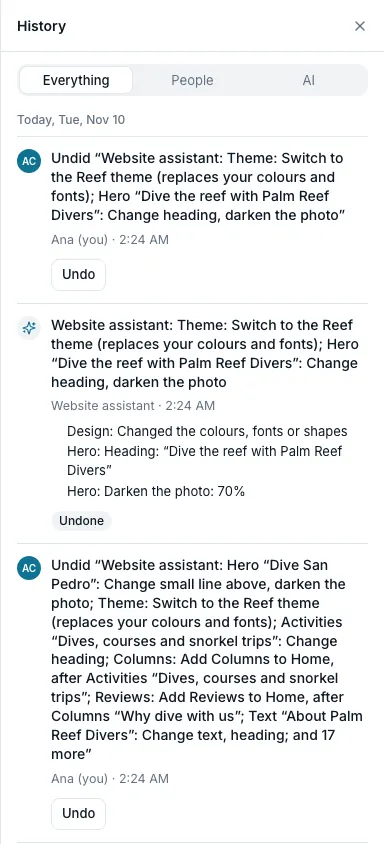
History lists every change to your website for the last 90 days: yours, your team's, the website assistant's and any connected AI's.
- In the editor, press History at the top.
- Filter with Everything, People and AI.
- Press Undo on any change to take back that one change, even after other edits. If a later change edited the same thing, it says which one, so you can undo that first.
- A turn by the website assistant is one row. If it made several changes, Undo this turn takes them all back.
Restore a published version
Your published versions are kept below the changes in History. Restoring one changes your draft only.
- In History, find the version and press View to see it with editing off.
- Press Restore. Seascape lists what will change in your draft.
- Press Restore to my draft.
A restore is one change in History, so Undo puts today's draft back, unless the version brings back a page you deleted since. Seascape warns you, because that restore can't be undone from History. Your live site changes when you publish.
When someone else saved the same page
If someone else at your shop, or your own other browser tab, saved the same page while you were editing, nothing is overwritten. Seascape shows who changed what, and lists your changes that aren't saved.
- Press Keep mine to save your changes on top of theirs. Where you both changed the same thing, yours wins.
- Or load their version. Your changes are kept in History in this browser tab, and Bring them back puts them back on the page.
- Anything that can't be saved, like your words in a section they removed, stays marked Not saved, with Put it back, Copy text and Discard.
Seascape asks before you leave the editor without the changes it kept for you. Close or Esc takes you back to the page with your typing kept.
Blanks to fill in, in double square brackets
Words like [[how many divers?]] are blanks: something still to fill in. The website assistant leaves one wherever it doesn't know a fact about your shop. Visitors never see a blank.
- Press Publish. Seascape lists each blank first, with its page and its sentence.
- Press Fill it, or Fill it first, to go straight to it.
- Or press Publish without that sentence. Your live site leaves out each sentence that still has a blank, and the blank stays in your draft until you fill it.
Words in single square brackets are yours, and go live as you typed them.
Still stuck?
Signed in, it can also look at your own shop.
A person reads every one: support@seascape.bz